Menu

Showing posts with label Linux. Show all posts

Tuesday, March 13, 2012

Linux Command - ln


ln command - It is used to create a link between files. There are two types of links available in the Linux system.

  1. Hard Link
  2. Symbolic Link

Hard Link – It points the exact location of the specific file on the system.
Syntax: # ln target_file hardlink_name

Create a file named "file1"
# echo "This is file1" > file1

List the information of the current directory with inode value. Inode has the information of where the data is stored on the disk.
# ll –i
total 8
656011 -rw-r--r-- 1 root root 14 Mar 13 14:23 file1

Create a hard link “file2” for file1
# ln file1 file2

If you check the content of these two files, it will be same.
# cat file1 file2
This is file1
This is file1

If you check the inode value of both files, it will be same.
# ll -i
total 16
656011 -rw-r--r-- 2 root root 14 Mar 13 14:23 file1
656011 -rw-r--r-- 2 root root 14 Mar 13 14:23 file2

Even though we remove file1, the file2 is still accessible as the hard link directly points to location of the data.
# rm -f file1

# ll -i
total 8
656011 -rw-r--r-- 1 root root 14 Mar 13 14:23 file2
# cat file2
This is file1


Symbolic Link


Syntax: # ln –s file1 file2

Create a file
# echo "This is file1" > file1

Check the content of the file1
# cat file1
This is file1

Create a symbolic link for the file and list the information. The inode for these two files will be different. The file2 get the content through the file1 in the name of symbolic link. It is similar to short cut in windows.
# ln -s file1 file2
# ll -i

total 12
656013 -rw-r--r-- 1 root root 14 Mar 13 15:07 file1
656014 lrwxrwxrwx 1 root root  5 Mar 13 15:07 file2 -> file1

Check the type of the file2.
# file file2
file2: symbolic link to `file1'

If we remove the file1, the symbolic link file2 will not work.
# rm -f file1

#cat file2
cat: file2: No such file or directory

# file file2
file2: broken symbolic link to `file1'


Linux Command - File


File Command


This command is used to find the data type contained in a file

Syntax:
# file file_name

Example: 
# file test.txt


Thursday, March 8, 2012

Network Related Linux Commands


All the network related files and information are in

/etc/sysconfig/network-scripts/ifcfg-eth0
/etc/sysconfig/network
/etc/resolv.conf

Here is the list of network related comments
How to start and stop the network service?
# network service start
# network service stop
# network service restart


IP Address:
A unique address used to identify the computer or a device which is on the TCP/IP network.

Format of IP Address:
xxx.xxx.xxx.xxx   32 bit numeric address. Ex: 192.168.90.23

IP Address Classes:
A, B, C, D and E
Class A 1.0.0.0 to 127.255.255.255
Class B 128.0.0.0 to 191.255.255.255
Class C 191.0.0.0 to 223.255.255.255
Class D 224.0.0.0 to 239.255.255.255
Class E  240.0.0.0 to 255.255.255.255

Private IP address:
An IP address which is visible only to the private network (LAN).
    From 10.0.0.0 to 10.255.255.255
    From 172.16.0.0 to 172.31.255.255
    From 192.168.0.0 to 192.168.255.255

Tuesday, March 6, 2012

How to assign multiple IP addresses to a single Network Card Interface


Step 1: Find out how many physical NIC on the system
# ll /etc/sysconfig/network-scripts


Consider you have one Ethernet device "eth0" and would like to add more IP addresses (alias) for the same.

In this example, I have assigned "192.168.0.90" and "192.168.0.88" to my primary (physical) Ethernet device.
192.168.0.91 eth0    primary (Physical NIC)
192.168.0.90 eth0:1 alias1     (Virtual NIC)
192.168.0.88 eth0:2 alias2     (Virtual NIC)


Step 2: Copy the eth0 file

# cp /etc/sysconfig/network-scripts/ifcfg-eth0 /etc/sysconfig/network-scripts/ifcfg-eth0:1
# cp /etc/sysconfig/network-scripts/ifcfg-eth0 /etc/sysconfig/network-scripts/ifcfg-eth0:2


Step 3: Edit the ifcfg-eth0:1 and ifcfg-eth0:2. Change the device name and the IP address.

# vim /etc/sysconfig/network-scripts/ifcfg-eth0:1

# vim /etc/sysconfig/network-scripts/ifcfg-eth0:2


Step 4: restart the network service

# service network restart


Step 5: Type ifconfig command to verify the network interface configuration and to check the all the IP addresses are running.

# ifconfig


Assign an IP address to the Linux system


How to assign an IP address to the Linux system?

Step 1: Edit the network scripts file. All the network related script files are in the below location
# ls /etc/sysconfig/network-scripts


 My system has only one Ethernet card. The file that need to be edited to assign the IP address is “ifcfg-eth0”.

If system has multiple Ethernet devices, the files will be like “ifcfg-eth0, ifcfg-eth1, ifcfg-eth2…”.

Step 2: Edit the Ethernet device file and add the IPADDR, GATEWAY, PREFIX/NETMASK…etc. as mentioned below.
# vi /etc/sysconfig/network-scripts/ifcfg-eth0


Step 3:  Bring down the network interface device and then start it.

# ifdown eth0
# ifup eth0

Or else just simply restart the network device.
# network service restart

Step 4:  Type ifconfig to view the available network interface card.

# ifconfig


Step 5: Try to ping this IP address from the other system.


Tuesday, November 29, 2011

Install LDAP on Linux system using yum


How to install Open LDAP on Linux System?
# yum search openldap-server

The above command will list all the packages that are matched with the “openldap-server”. The version of the package is based on the Linux version installed on the system. 


yum install openldap-servers.i386

The above command will install the LDAP server and its dependencies.


How to start the LDAP server?
Here is the 3 ways to start the LDAP server.
# service ldap start
# /etc/init.d/ldap start
# /sbin/service ldap stop


How to stop the LDAP server?  
Here is the 3 ways to stop the LDAP server.
# service ldap stop  
# /etc/init.d/ldap stop   
# /sbin/service/ldap stop


How to check LDAP server is running on the Linux system?
Here is the 3 ways to check the status of the LDAP server.
# service ldap status  
# /etc/init.d/ldap status   
# /sbin/service/ldap status


What is the default port for the LDAP server?
The default port over TCP is 389. LDAP over SSL is 636.


How to change the default port of the LDAP Server on Linux System?


How to uninstall the LDAP from the Linux system?
yum remove openldap-servers.XXXX  (where XXXX is the version of the LDAP package)
Example: # yum remove openldap-servers.i386

Monday, November 28, 2011

Linux Tool for system configuration and administration


Here is some important Graphical User Interface and Text Based interface tool on Linux.

# setup
Authentication Configuration
# authconfig-tui

Keyboard Configuration
# system-config-keyboard

Firewall Configuration
# system-config-securitylevel
# system-config-securitylevel-tui

Network Configuration
# system-control-network
# system-config-network-tui

System Services
# system-config-services


Timezone Configuration
# system-config-time

X Configuration
# system-config-display

Sunday, November 27, 2011

Understanding Linux Directory Structure


/bin - It contains all the command line programs that are accessible to the users.  For example ln, mkdir, mount, ping, sync and etc...


/boot - All the files (Like kernel…) which are required to boot up the system are here. 


/dev – In Linux, all the devices that are connected to the system will be treated like a directory/file. These virtual directories will be here. For example,  floppy, hard Drive, ram, audio and cdrom.


/etc – The configuration files for the operating system will be here. These are just a text files which can be edited by the user to change the configuration. Binaries files shouldn’t be kept here. For example,  hosts, httpd, cron, passwd and etc…


/home – The default home directory for a non-root user will be here when a new user is added.  For example, if /home/username, /home/akila


/lib – Shared libraries and kernel modules will be here. These files will be represented by ‘.so’.
It is similar to “DLL” in windows operating system. 


/lost+found – If the Linux system is crashed, it will keep the files that it restores.

/media – This is the place for mounting removable disks like Floppy, CD-ROM…

/misc – This directory is for miscellaneous purposes.

/mnt – In Linux everything will be considered a directory/file. To access the external devices, it should be attached to any of the directory in the file system. This is called mounting. The mount points for the each external device will be here.

/net – It is mount point for entire remote file systems.

/opt – The third party software will be stored here.

/proc – It is a virtual directory (doesn’t exist physically) like /dev, contains the process related information. The systems hardware information can be stored here. For example, zoneinfo, meminfo and etc…

 
/root – It is a default home directory for the root user.


/sbin – System administrators programs are stored here.


/srv – It contains site-specific data which is served by this system.

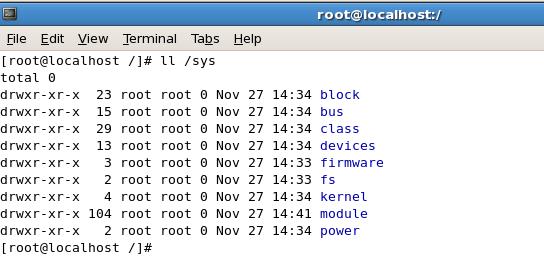
/sys – It is similar to /proc. It contains information about the devices that are connected to the system. It is a kernel file system.


/tmp – A directory to keep temporary files used by the programs.

/usr – All user-related programs, libraries and documentations will be stored here.


/var – This directory contains variable data that keeps on changing. For example, logs, mail ..


Monday, August 8, 2011

Linux Command - xsltproc

Xsltproc – It is a Unix/Linux command line tool to transform the XML file into an Html or XML file.

# xsltproc  [OPTIONS]  stylesheet-file  input-xml-file

# xsltproc  - -output  books.html books.xsl books.xml


Tuesday, July 19, 2011

SSH without password

This tutorial explains on how to SSH to the server without providing password. This will helpful when there is necessary to do automation process or to keep on logging to the server regularly.

Step 1. Generate the authentication keys in the client system. These keys can be generated using the RSA or DSA algorithm. RSA algorithm is much faster than DSA where as the DSA is more secure.
    
     # ssh-keygen -t rsa

     By default, the key generated by the above command will be in /root/.ssh/id_rsa if you login with root directory. When you generate the key, don’t enter password.

     
     The above command will generate one private and one public key as shown in the below picture.


Step 2.  In the server system, create .ssh directory if it doesn’t exists and then create an authorized_keys file.

# ssh username@server
# mkdir –p .ssh
# touch authorized_keys
# exit

Step 3.  Now append the public key (id_rsa.pub) which is created on the client system in the authorized_keys. and change mode of the .ssh directory and authorized_keys file.

# scp /root/.ssh/id_rsa.pub user@server:/tmp
(copy the id_rsa.pub key to temp directory in the server)
# cat /tmp/id_rsa.pub >> /.ssh/authorized_keys

# chmod 700 .ssh
# chmod 600 .ssh/authorized_keys

Step 4.  Once you complete everything, log into the server from client system. It will not prompt for password.

# ssh user@server 

Monday, July 11, 2011

Rsync in linux


What is rysnc?
rsync is a utility software in Linux/Unix used to transfer files between two destination whereas the destination can be remote or local system. As it transfers only difference of the file if the destination already has that file, it is very fast.

Rsync syntax
rsync [option] [src] [destination]

Example:
rsync    --verbose \
--recursive \
 /etc  backup@backupserver:/opt/backup/frontserver1
The above command syncs the contents of the etc folder to frontserver1 in the backupserver.

Monday, July 4, 2011

Vi Editor Commands


  • 1. What are the different editors in Linux to edit files?
    • 1. ed
    • 2. vi
    • 3. vim
    • 4. pico
  • 2. How to open a file in vi editor?
    • Syntax
    • # vi file-name
    • Example:
    • # vi names.txt
  • 3. How to quit a file?
    • Example:
    • Vi names.txt – Open a file in vi editor.
    • :q! – If you are in insert mode press escape before you type :q! to quit the editor without saving.
    • :wq – Quit vi editor with saving.
  • 4. Save commands in vi editor
    • q Quit
    • :q! Quit without saving
    • :qa Quit all fiels opened
    • :w Save changes
    • :wq Save and quit
    • zz Save and quit

List Commands

  • List command Syntax.
  • # ls [option] [file]
  • # ll [option] [file]
  • Frequently Asked Questions in Remove Command
  • 1. How to list all the files including hidden files?
    • Syntax
    • # ls –a
    • The above command list all the files including hidden files in the current directory.
    • # ll –a
    • The above command list all the files including hidden files in the current directory with lot more information.


File related commands

  • 1. How to create an empty file?
    • Syntax
    • # touch file-name
    • Example:
    • # touch tmp
    • The above command creates an empty file.
  • 2. How to copy files and directories?
    • Syntax
    • # cp file1 file2
    • Example:
    • # cp names.txt emp.txt
    • The above command copies content of names.txt to emp.txt if you agree for overwrite.
    • # cp -r /opt/dev/project1 /opt/dev/project2
    • The above command copies all the contents of project1 directory to project2 directory recursively.
  • 3. How to read a file?
    • Syntax
    • # more file-name
    • Example:
    • # more /etc/passwd
    • The above command reads passwd file
  • 4. How to concatenate files?
    • Syntax
    • # cat file1 file2
    • Example:
    • # cat /tmp/user-list1.txt /tmp/user-list2.txt > users.txt
    • The above command concatenates both users list file and writes into a "users.txt" file.
  • 5. How to create a directory?
    • Syntax
    • # mkdir directory-name
    • Example:
    • # mkdir downloads
    • The above command creates directory named as "downloads"
    • # mkdir –p /usr/softwares/downloads
    • The above command creates a directory with parent as needed if parent doesn't exist.
  • 6. How to change the current directory?
    • Syntax
    • # cd
    • Example:
    • # cd /opt/dev/project
    • The above command change the current directory to /opt/dev/project
    • # cd ../
    • Go one level up from the current folder
  • 7. How to get current directory path?
    • Syntax
    • # pwd
    • The above command prints the current directory path.
  • 8. How to rename a file?
    • Syntax
    • # mv file1 file2
    • Example:
    • mv names-list.txt emp-list.txt
    • The above command moves the content of "names-list.txt" to emp-list.txt. As Linux doesn't support rename, move command is used.


User and password commands in linux

  • Remove command Syntax.
  • # rm [option] file
  • # rmdir [option] directory
  • Frequently Asked Questions in Remove Command
  • 1. How to check who currently logged into the system?
    • # whoami
    • The above command tells who logged into the system.
  • 2. How do I know what are the users created in linux?
    • # cat /etc/passwd
    • All the created users will be in passwd file
  • 3. How to create new user account in linux?
    • Syntax:
    • # useradd username
    • Example:
    • # useradd -p A18jio guest
    • The above command creates a user called "guest" with password "A18jio".
  • 4. How to change the password of currently logged in user?
    • Syntax:
    • # passwd enter-password
    • Example:
    • # passwd y3d3#uj
    • The above command changes the currently logged in user password.

Remove command in linux

  • Remove command Syntax.
  • # rm [option] file
  • # rmdir [option] directory
  • Frequently Asked Questions in Remove Command
  • 1. How to remove a file?
    • Syntax
    • # rm [option] file
    • Example:
    • # rm tmp.txt
    • The above command will delete the "tmp.txt". Before that it will ask you to confirm for deletion.
    • # rm -f tmp.txt
    • The above command will forcely delete the "tmp.txt" file
  • 2. How to remove a directory?
    • Syntax
    • # rmdir [option] directory
    • Example:
    • # rmdir /temp/test
    • The above command will delete the "test" directory if there is no content in it.
    • If there is any content in this directory, it will throw error: "rmdir: /temp/test: Directory not empty".
    • # rmdir -p /temp/test
    • The above command removes directory and its ancestors.
  • 3. How to remove a directory including its subdirectories?
    • Example:
    • # rm -r /temp/test
    • The above command will delete the "test" directory and its sub subdirectories and files.
    • # rm -rf /temp/test
    • The above command deletes all the files and subdirectories without asking confirmation. If you run this command by mistake, thats all. So very carefull when you execute this command.


Find Command

  • Find command Syntax.
  • # find [path] [expression]
  • Frequently Asked Questions in Find Command
  • 1. How to find a directory?
    • Syntax
    • # find / -name folder-name –type d
    • Example:
    • # find / -name subversion –type d
    • The above command will search subversion folder in the root directory.
    • / - means root directory
    • d - means search only directories
  • 2. How to find a file?
    • Syntax
    • # find . -name file-name -type f
    • Example:
    • # find . -name news.xml -type f
    • The above command will search news.xml file in the current directory.
    • . - means current directory
    • f - means search only files
  • 3. How to find symbolic links?
    • Syntax
    • # find . -name file-name -type l
    • Example:
    • # find . -name feed -type l
    • The above command will search feed symbolic link in the current directory.
    • . - means current directory
    • f - means file
  • 4. Other interesting options in find with example
    • Example:
    • find . -name "*.txt" -print
    • The above command will finds all the files with txt extension.